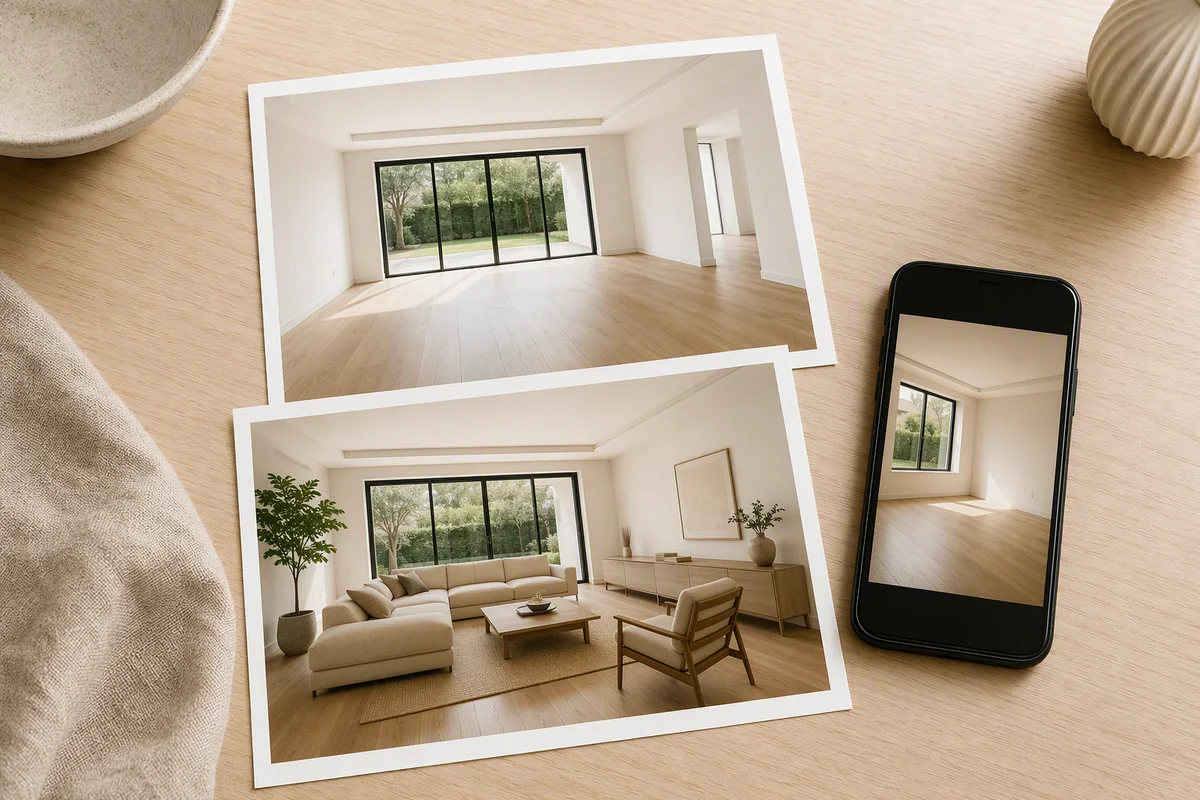
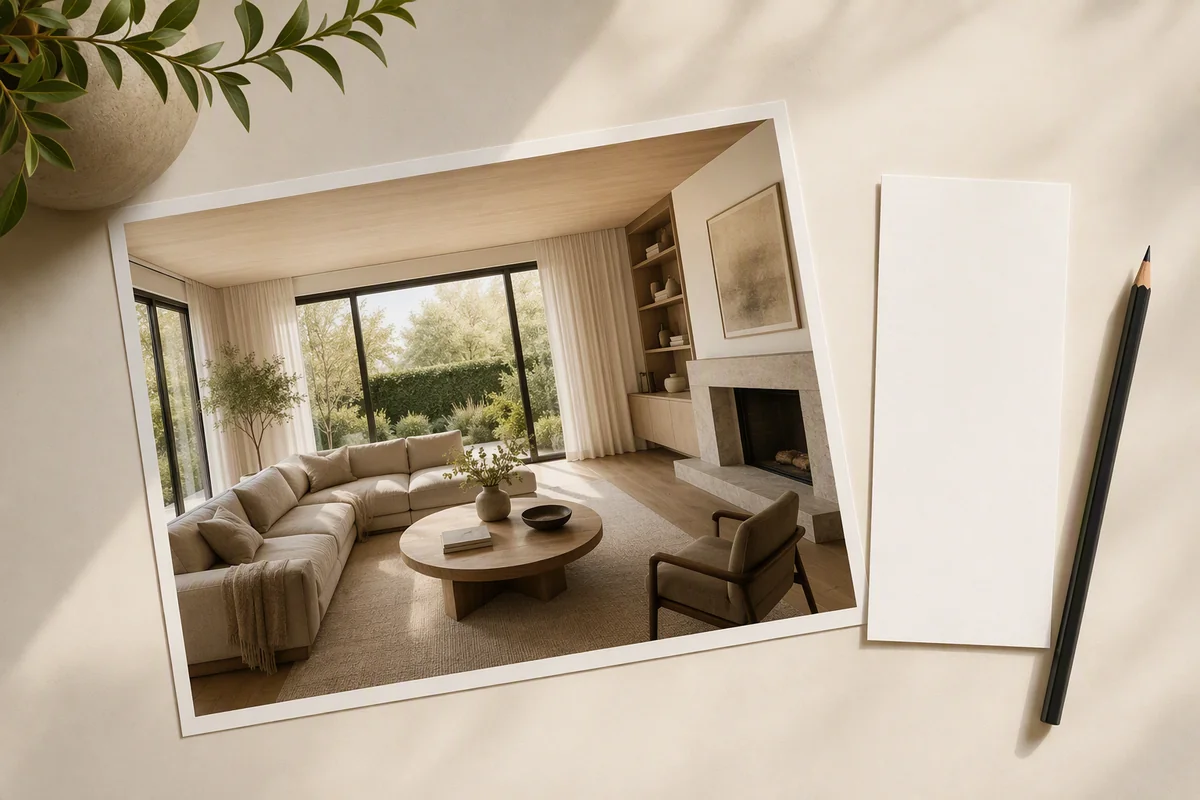
Region editing in Splatr Reimagine AI lets you focus a generation request on a selected part of an image. It is useful when the overall property image works but a furnishing, finish or local detail needs refinement.
How does a region edit work?
Select the relevant area in the Reimagine AI workspace and describe the intended change. The selection gives the request a local focus, while the image supplies the surrounding context.
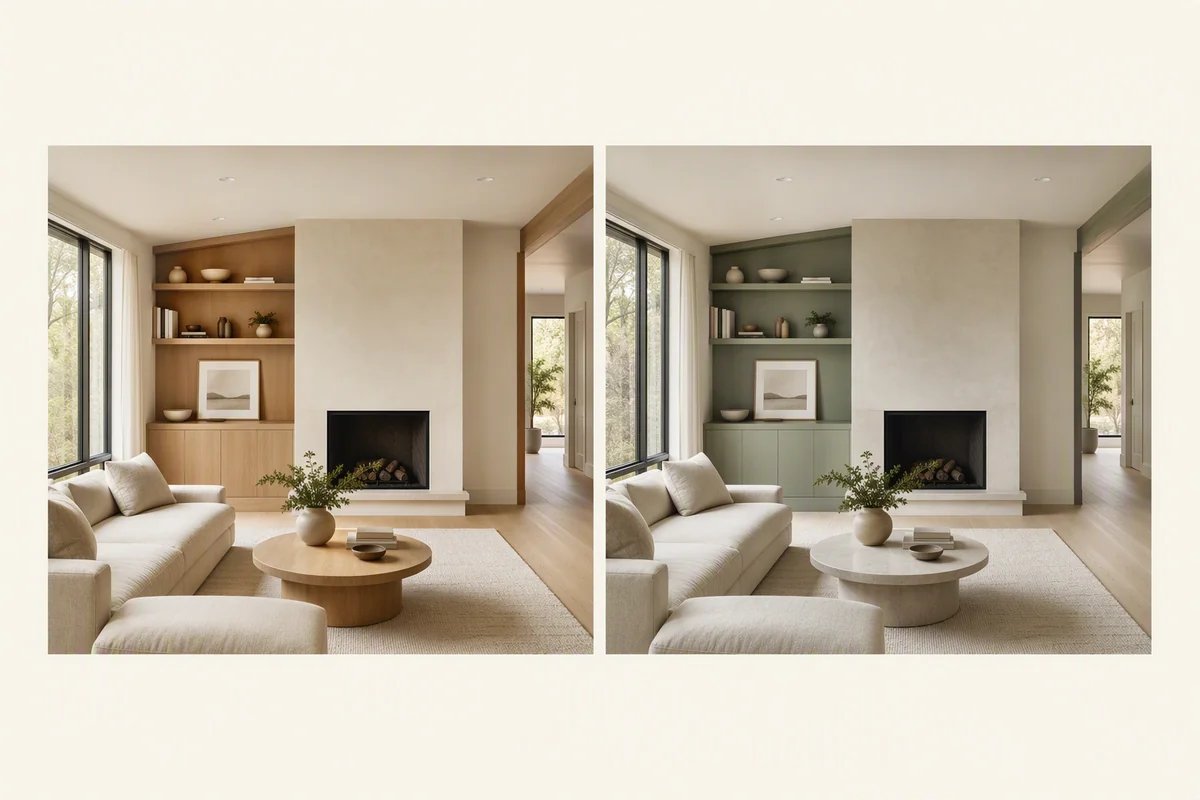
A seating area can receive a revised furniture treatment, or part of an interior concept can be explored with a different finish. The generated version can then be compared with the source.
Why use region editing instead of a full restyle?
A full-room request is appropriate when the entire visual direction needs to change. A region request is more specific: it focuses the next iteration on the part you want to refine.
This adds control after a Furnish or restyling result. You can develop the image through targeted requests rather than repeatedly describing the complete room. Explore Reimagine AI’s presets.
Can you combine it with references?
The wider Reimagine AI workflow supports theme and object references alongside written direction. References communicate the visual target, while the local selection identifies the area involved in the edit.
Use reference images when a material palette or furniture character is easier to show than describe.
Does the selection lock the rest of the image?
No. Region selection directs the generation; it is not a guarantee that every pixel outside the boundary remains unchanged. Shadows, reflections and surrounding details can also be affected.
Use the comparison view to inspect both the selected area and the full image. Version history supports reviewing alternatives before downloading the result.
How does drawing define the request?
Draw around the part of the image you want to edit, then say what should happen there: add a furnishing, remove a loose object or change a finish. This is Reimagine AI’s local, magic-style editing workflow. The selected area focuses generation; review nearby shadows and details afterwards.
For a specific furniture arrangement, use asset placement instead: drag the asset onto the canvas and adjust its size, position and rotation before generating. Asset placement and drawn-area editing are separate ways to direct a request.
Where can the refined image be used?
A selected output can join the property gallery, a Showcase page or the source images for Video Generator, currently beta. This connects local image refinement with the wider marketing presentation.
If the edit introduces a proposed renovation or new finish, identify it as a concept. For a broader interior direction, see room restyling and finishes.
Put the guide into practice.
Try Virtual Studio with your own property images.
14-day free trial on the Basic plan.