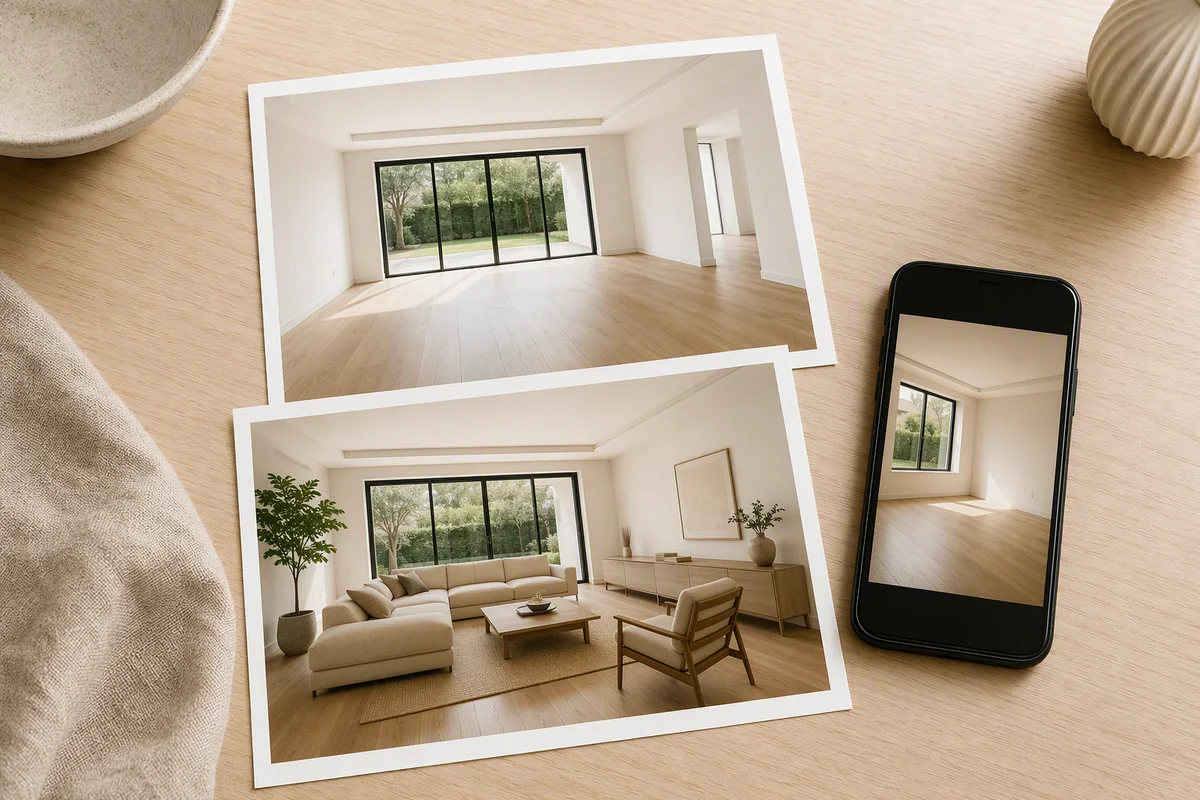
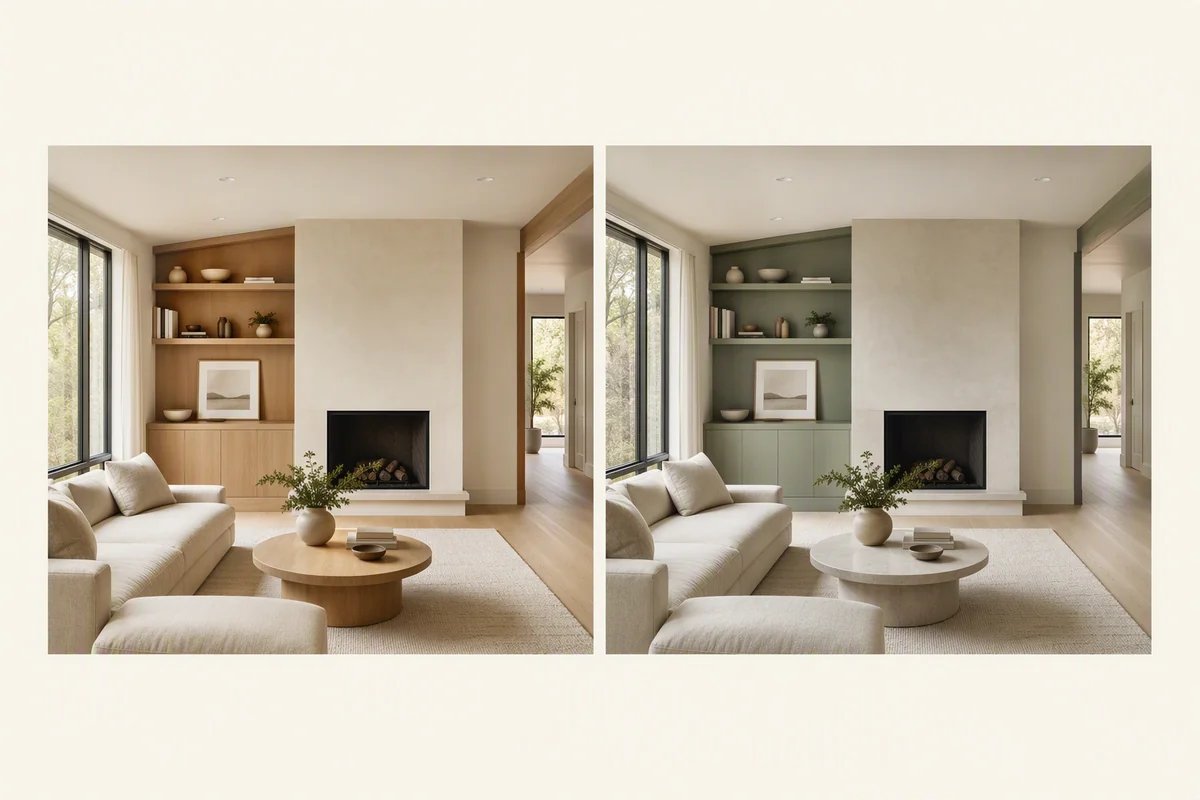
Reimagine AI combines property-specific presets with your own written instructions. A prompt lets you define the furniture, style or local change you want, while the source image supplies the property view. Reference images and region selection add further direction.
What does the preset contribute?
Furnish, Cleanup and Enhance establish different editing tasks. Your prompt then adds the details relevant to the image, such as the type of furniture, a material palette or the objects to retain.
| Preset | Example instruction |
|---|---|
| Furnish | Add a compact sofa, reading chair and oak coffee table; keep both doorways clear |
| Cleanup | Tidy loose objects and straighten the bedding; retain existing furniture |
| Enhance | Balance the bright window and dark corner; preserve the existing light direction |
This gives the generation a clearer purpose than a broad request to improve everything at once.
How do you describe a furnishing style?
Specify the main furniture and visual character. For a living room:
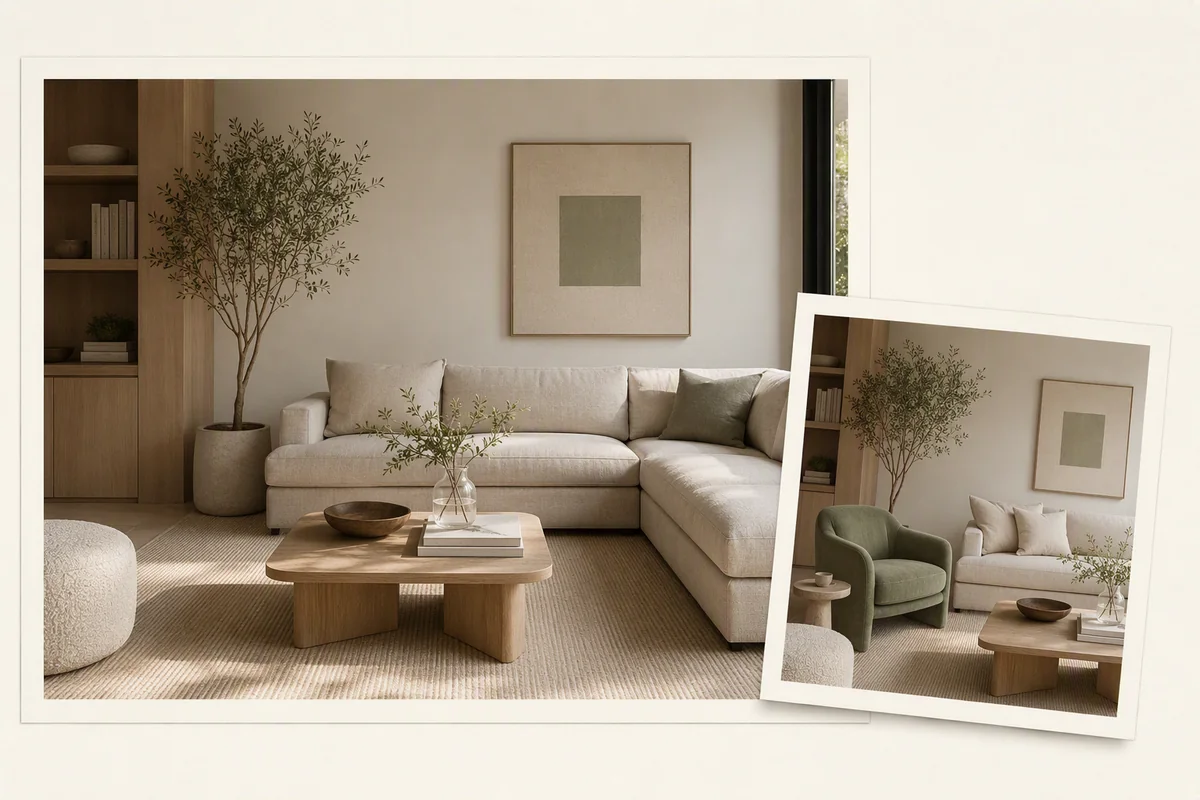
Furnish this room with a cream linen sofa, a compact oak coffee table and a muted green reading chair. Keep the fireplace visible and the doorways clear. Preserve the windows, floor and camera view.
Reimagine AI interprets the instruction in the context of the photograph. The result is a generated arrangement rather than a measured furniture plan.
When should you add a reference image?
Use a theme reference when the intended palette, lighting or atmosphere is easier to show than describe. Use an object reference when the furnishings themselves are the focus.
The prompt can explain which qualities of the reference matter. See theme and object references for how the two modes differ.
Can you direct a smaller change?
With region editing, select an area and describe the local request. For example, a selected seating area can receive a different chair treatment while the instruction asks to retain the wider room.
Selection focuses the edit but does not guarantee pixel-perfect preservation elsewhere. Reimagine AI’s comparison view helps you inspect the full result. Explore region editing.
How do you refine a result?
Adjust the instruction that controls the unwanted change, then compare the new version with the original. Reimagine AI’s history and download tools support choosing the version that fits the brief.
Preservation instructions guide generation; they do not guarantee structural accuracy. Review the room’s fixed features and identify staged or proposed changes before using the image in a listing.
Put the guide into practice.
Try Virtual Studio with your own property images.
14-day free trial on the Basic plan.