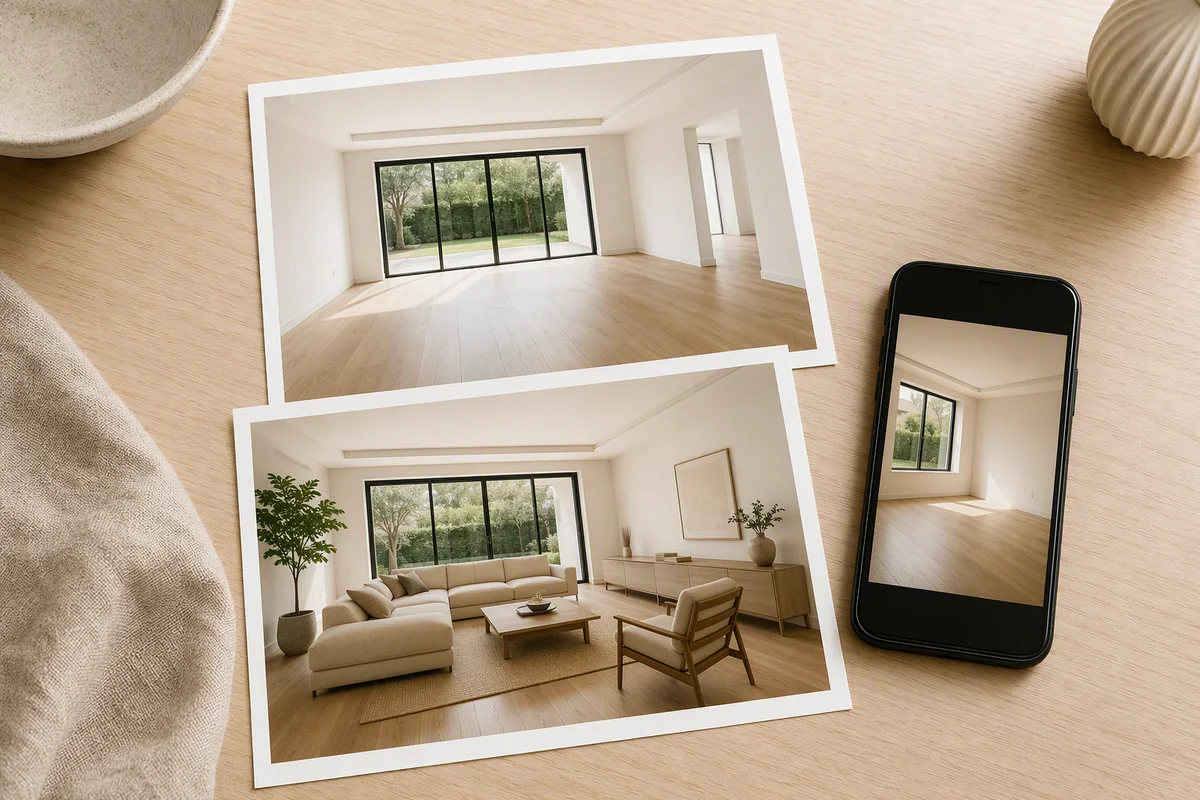
Splatr Reimagine AI’s Furnish preset adds a furniture concept to an empty or mostly empty room photograph. It gives estate agents, photographers and property teams a way to show how a space could be used without physically furnishing it for the shoot.
How does virtual furnishing work in Reimagine AI?
Upload the room image, select Furnish and describe the arrangement or style. The photograph supplies the visible space; your instructions guide the generated furniture and atmosphere.
A living room can become a seating concept, an empty bedroom can gain a bed and bedside furniture, and a vacant dining area can be shown with a table arrangement. The result is an edited image that you can compare with the source and download.
Can you choose the style?
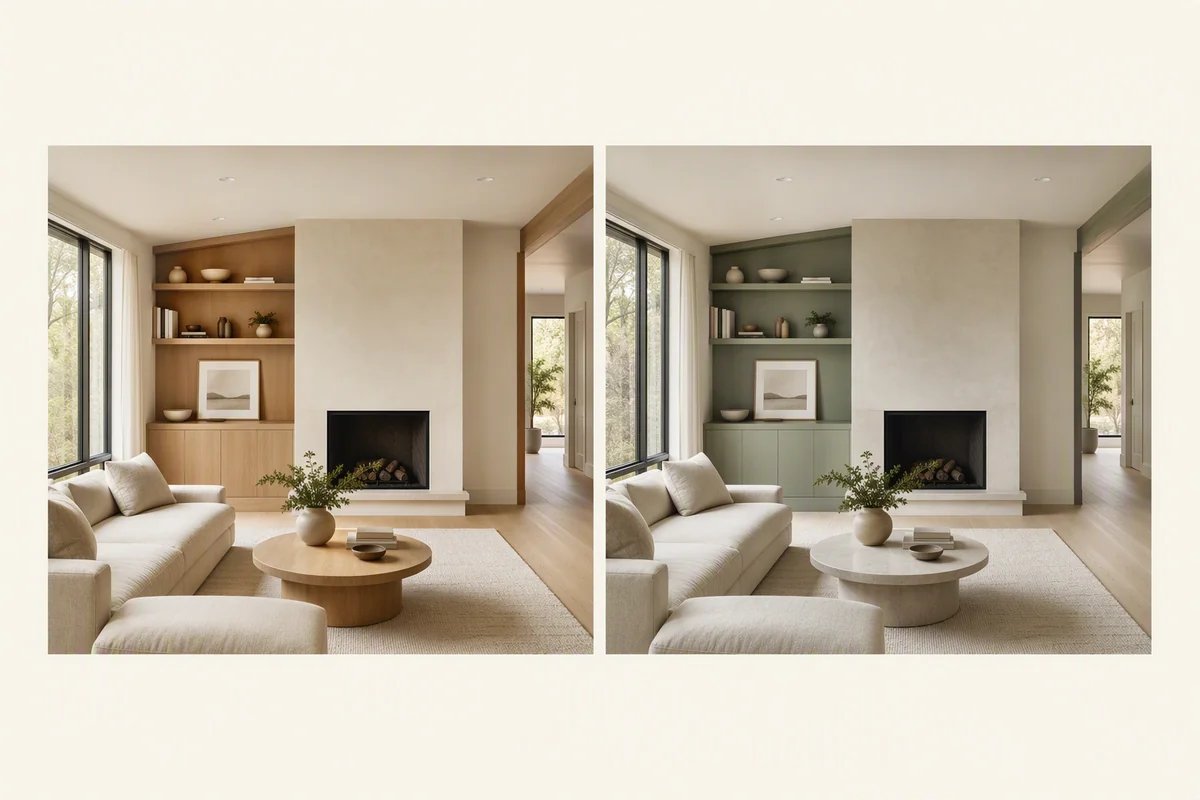
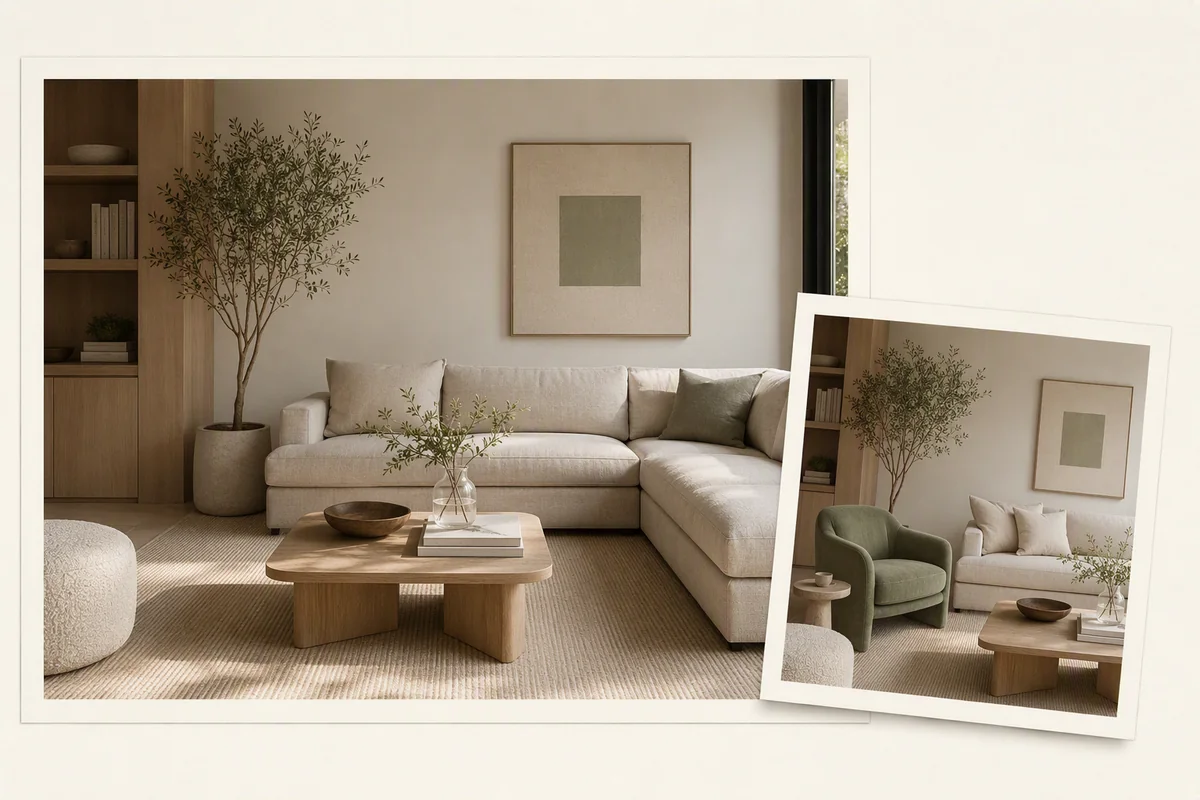
Use a prompt for the visual direction, or add a reference image. Theme references guide colours, materials and mood. Object references focus on furnishings you want the generation to interpret.
This gives you more control than choosing a generic room label alone. Explore Reimagine AI references for the difference between the two modes.
Can you adjust furniture after generation?
Reimagine AI’s region-editing workflow lets you focus a follow-up request on part of the image. You can refine an area while retaining the wider visual direction, then compare the new result with the source.
For a partly furnished room, state which existing items should remain. If the main job is tidying an occupied interior, Cleanup is the more relevant preset.
How does this support property marketing?
The staged image can join the listing gallery or a Showcase presentation. It can also serve as source material for a generated property film through Video Generator, currently beta.
That connects the furnishing work to the rest of the campaign: one room concept can contribute to still imagery, motion and a hosted property page.
What does the output represent?
It represents a furnishing possibility, not installed furniture or a measured layout. Check the room’s fixed features, furniture scale and access against the original photograph, and label the image as virtually staged. Separate generations may also need review for consistency between angles.
For examples of the instructions you can use in the app, read virtual staging prompts.
Put the guide into practice.
Try Virtual Studio with your own property images.
14-day free trial on the Basic plan.