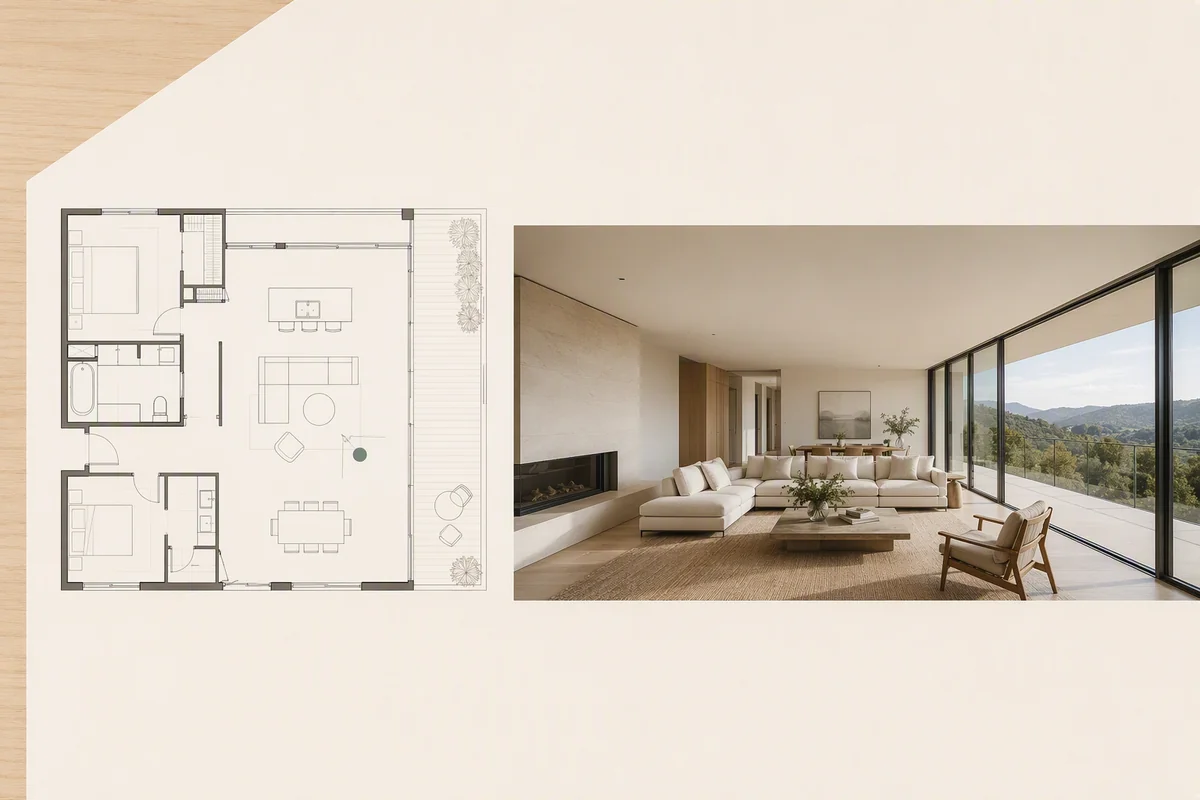
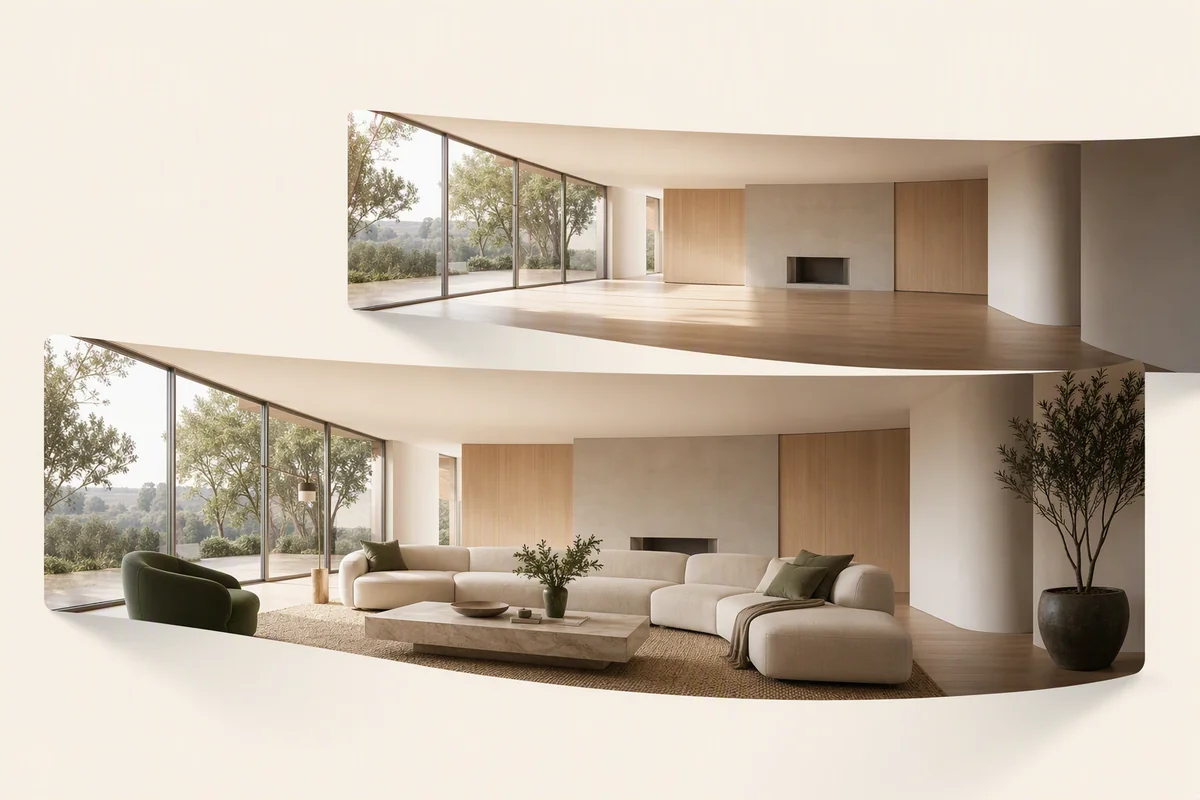
Splatr’s public tour links can be added through the external-tour workflows documented by Rightmove and Zoopla. Create the tour in 360° Visualization, publish the appropriate view and submit that link through your agency’s listing system.
How do you add a virtual tour to Rightmove?
Rightmove’s official instructions distinguish between feed-managed listings and those managed in Rightmove Plus.
If your agency uses an automatic data feed, add the tour through that feed. For a manually managed listing in Rightmove Plus:
- Open Properties, then Property List.
- Select the property and open Media.
- Find Additional media and choose edit, then add link.
- Enter the public tour URL, add a caption and save.
Rightmove documents secure external links opening in a separate pop-up. YouTube and Vimeo video links are handled differently from external tours.
How do you add a virtual tour to Zoopla?
Zoopla’s official guide describes adding the URL in ZooplaPro. Open Manage listings, select the department and listing, then paste the link in the Video / Virtual tours section and save.
Feed-managed listings should follow the equivalent route through their publishing provider. Zoopla’s supported video players are a separate consideration: an exported MP4 is not automatically a hosted video URL that the portal can display.
Which Splatr view should you publish?
Use the tour destination appropriate to the portal. Splatr’s sharing workflow distinguishes the tour from the wider Showcase presentation, which can contain branding, property information and contact features.
Check the destination’s requirements before submitting a branded page. Rightmove’s technical guidelines describe relevant content restrictions.
What does Splatr handle?
360° Visualization creates the interactive presentation from panoramic images, with rooms and floor-plan navigation. Publishing supplies the public destination that can be shared beyond the Studio workspace.
This is link-based distribution, not automatic synchronisation or a certified partnership with either portal. The agency’s listing system controls the submission.
Can you share the same property elsewhere?
Use the public tour directly, embed it on your agency website, or include the media in a Showcase presentation. These options let the same property content support several distribution channels.
Verify the public link and resulting listing after submission.
Put the guide into practice.
Try Virtual Studio with your own property images.
14-day free trial on the Basic plan.