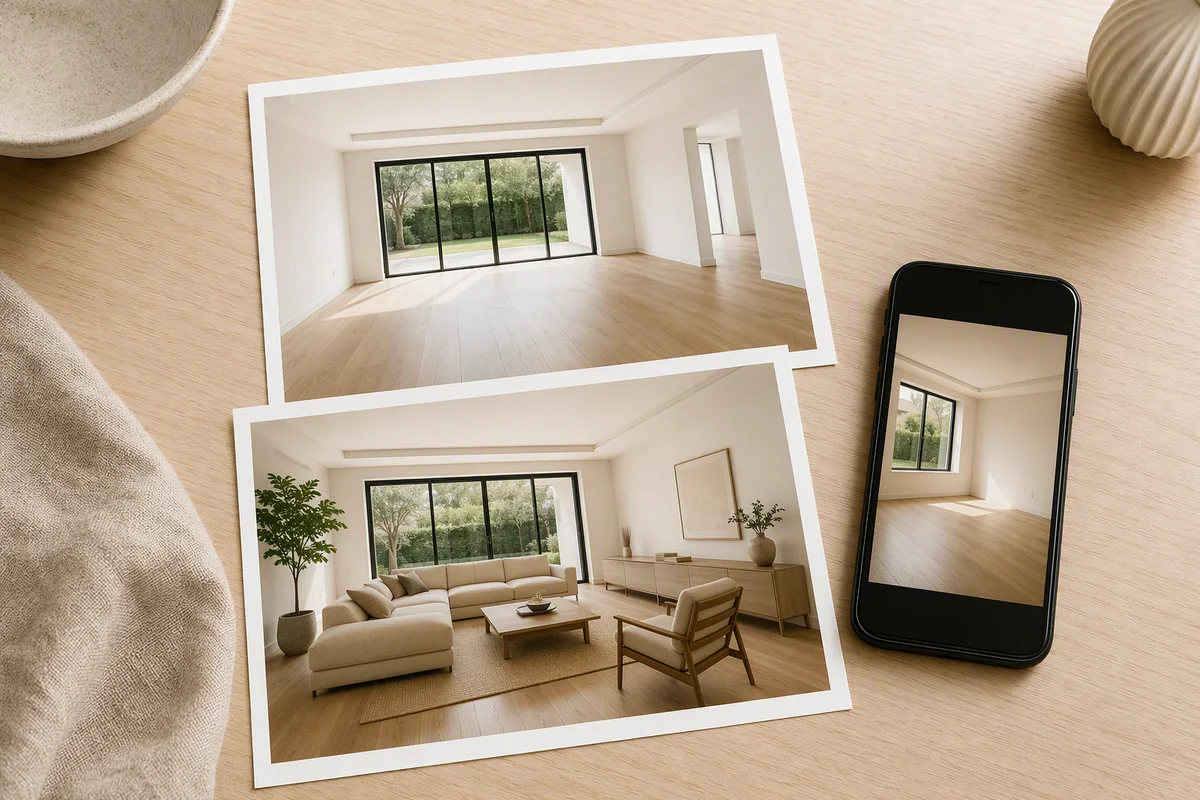
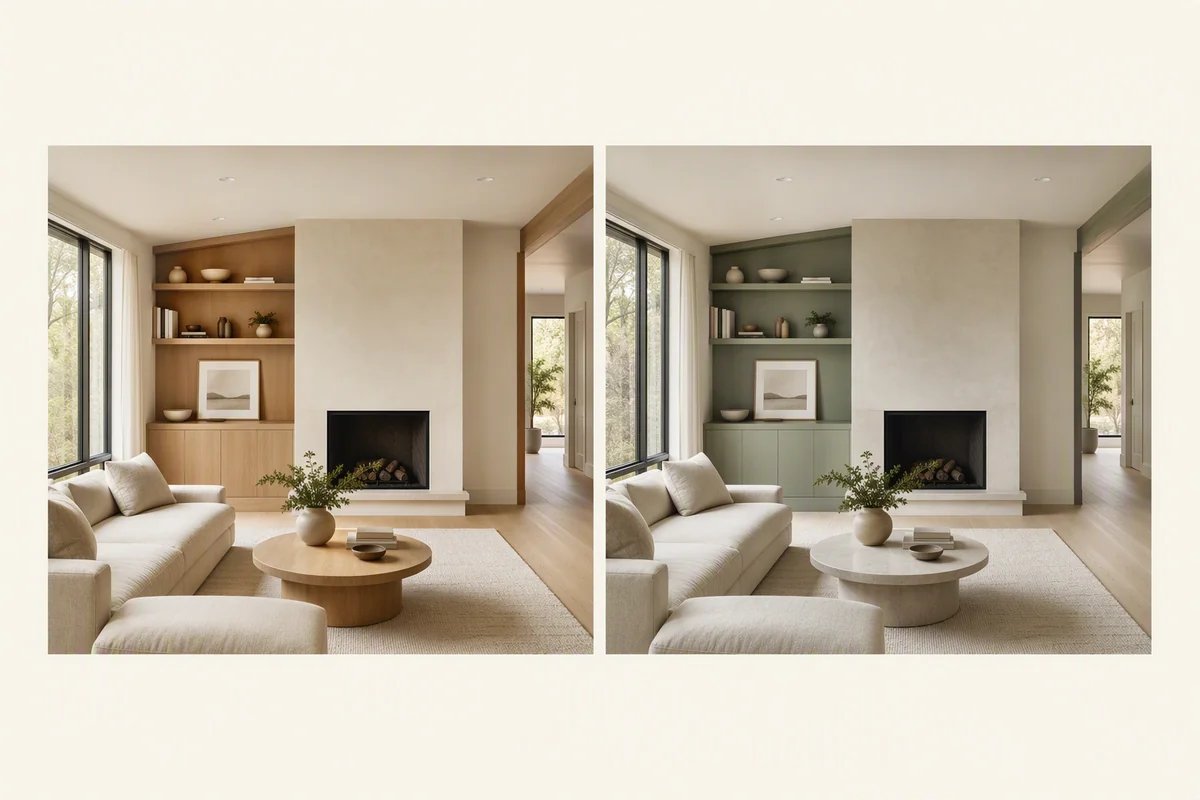
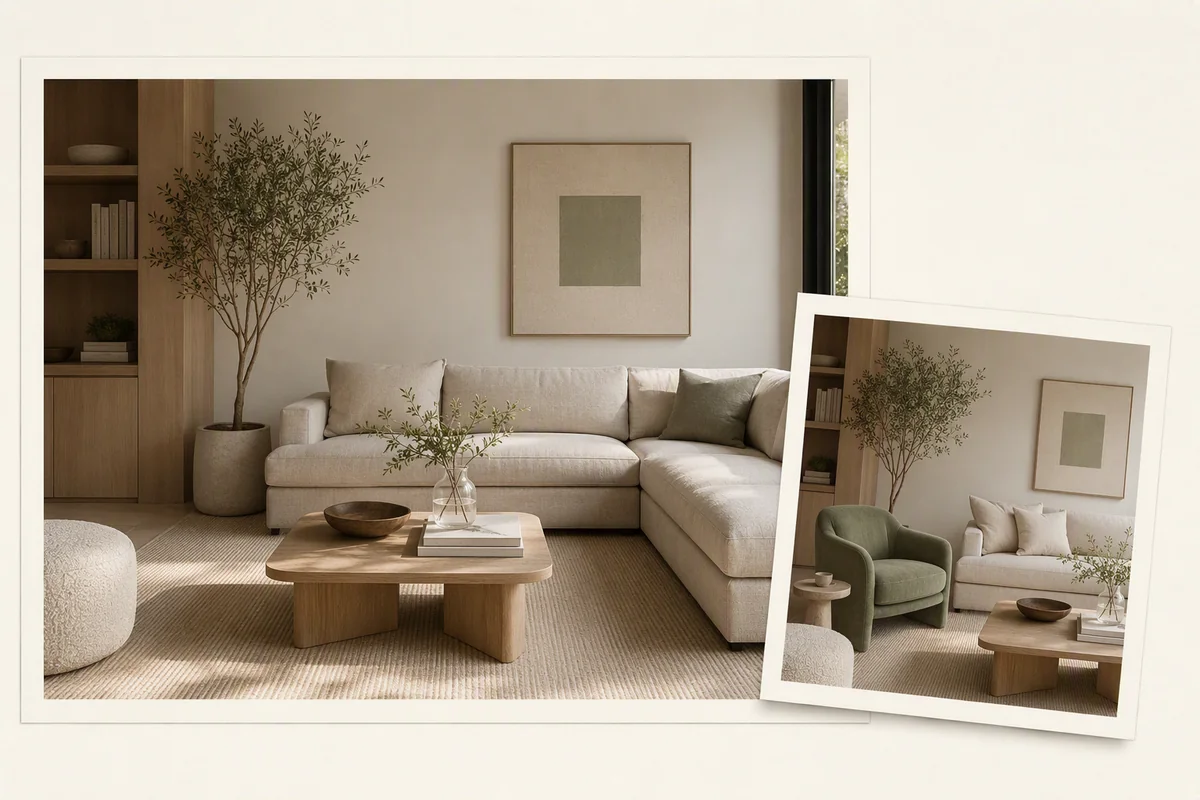
Splatr Reimagine AI’s Enhance preset improves the photographic presentation of an interior or exterior image. It focuses on light, colour and detail, giving property teams an editing option when the room itself does not need new furniture or a different design.
What does Enhance focus on?
Use Enhance to direct improvements to exposure, colour balance and visual clarity. You can add a specific instruction, such as balancing a dark seating area against a bright window while retaining the existing light direction.
The aim is a more readable property photograph. The source supplies the room, finishes and surroundings; the generated version should be checked against it before use.
How does the workflow differ from virtual staging?
Furnish creates a furniture arrangement. Cleanup addresses loose clutter and light styling. Enhance concentrates on how the existing scene appears in the photograph.
This separation lets you select the relevant task within Reimagine AI. A furnished room with uneven exposure can use Enhance without requesting a redesigned interior. Compare the three presets.
Can you enhance exterior photographs?
The enhancement direction also applies to exterior imagery. Light and colour can be refined while the building and its surroundings remain the reference.
If the request involves new landscaping, finishes or architectural changes, it becomes a design concept rather than straightforward photographic enhancement. Reimagine AI offers separate concept directions for those tasks.
How do you choose the final version?
Use Reimagine AI’s comparison and history tools to assess the generated result against the original. Look at the treatment of windows, shadows, materials and fixed features, then download the selected image.
AI-generated detail is not proof of information absent from the source. An enhancement should not change room proportions, replace a view or conceal visible condition.
What does image upscale add?
Reimagine AI also offers image upscaling for a larger-resolution output. Enhancement changes photographic presentation; upscale addresses image resolution. Inspect the selected enlarged result before export, because generated detail is not verification of information absent from the original.
For a phone-based starting point, follow staging smartphone property photos.
How does the image fit the wider campaign?
Include the selected output in a Showcase presentation or use it as source material for Video Generator, currently beta. Enhance therefore supports both the still-image gallery and the media created from it.
If the next step is adding furniture, Furnish provides that workflow. Review each generated stage against the original so that improved presentation continues to represent the same property.
Put the guide into practice.
Try Virtual Studio with your own property images.
14-day free trial on the Basic plan.