Splatr’s 360° Visualization plugin turns panoramic images into an interactive property tour. Visitors can look around rooms, move between views and use floor-plan navigation to understand the layout. Suitable photographs and rendered panoramas can both be used.
Do you need a particular camera?
You do not need a Splatr-branded camera. The tour starts with suitable panoramic images, allowing you to use existing captures or panoramic renders from a visualisation workflow.
Use complete spherical imagery intended for a 360° viewer. A conventional photograph or partial phone panorama is not interchangeable with that input. The exported image must contain the coverage needed to look around the space.
How is a tour organised?
Create a Virtual Studio project with 360° Visualization, add the panoramas and organise the rooms and floors. Each scene supplies a view of the property that a visitor can explore interactively.
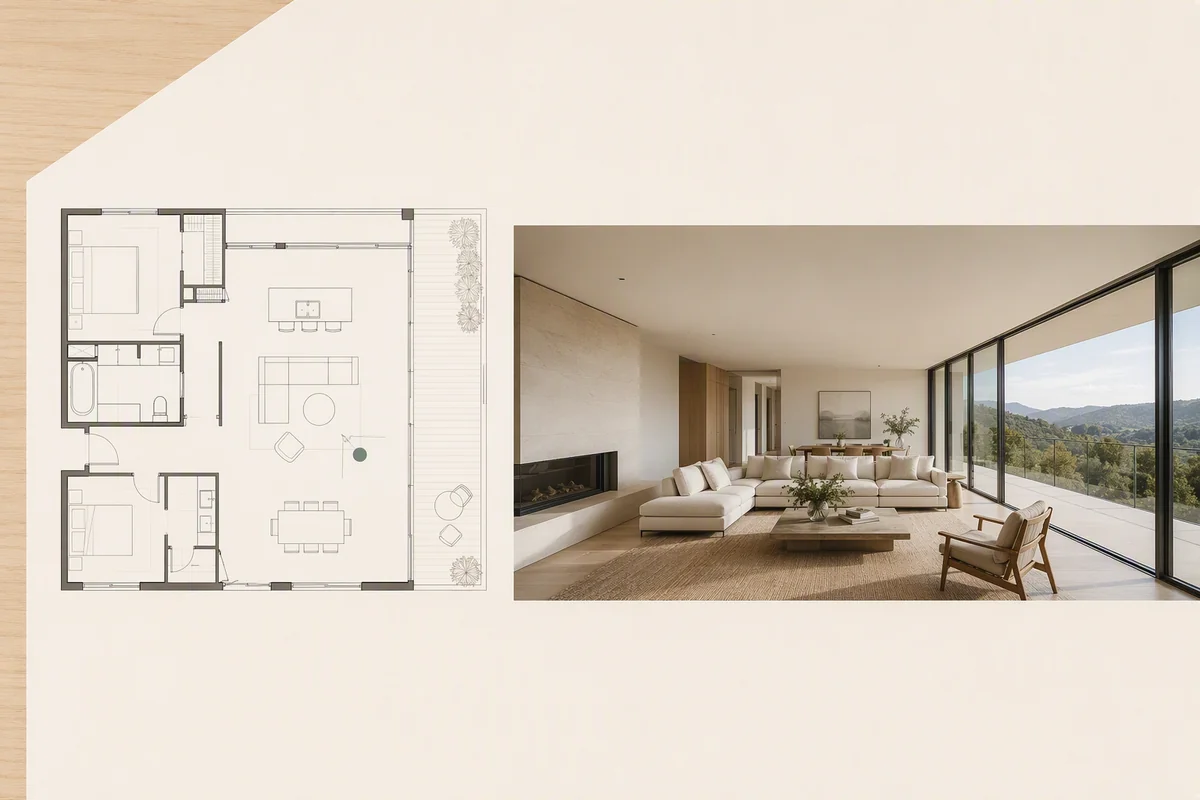
A floor plan gives the room views a spatial reference. It helps visitors see how the panoramas relate, particularly across several rooms or levels. Explore floor-plan navigation.
Can you present an unbuilt property?
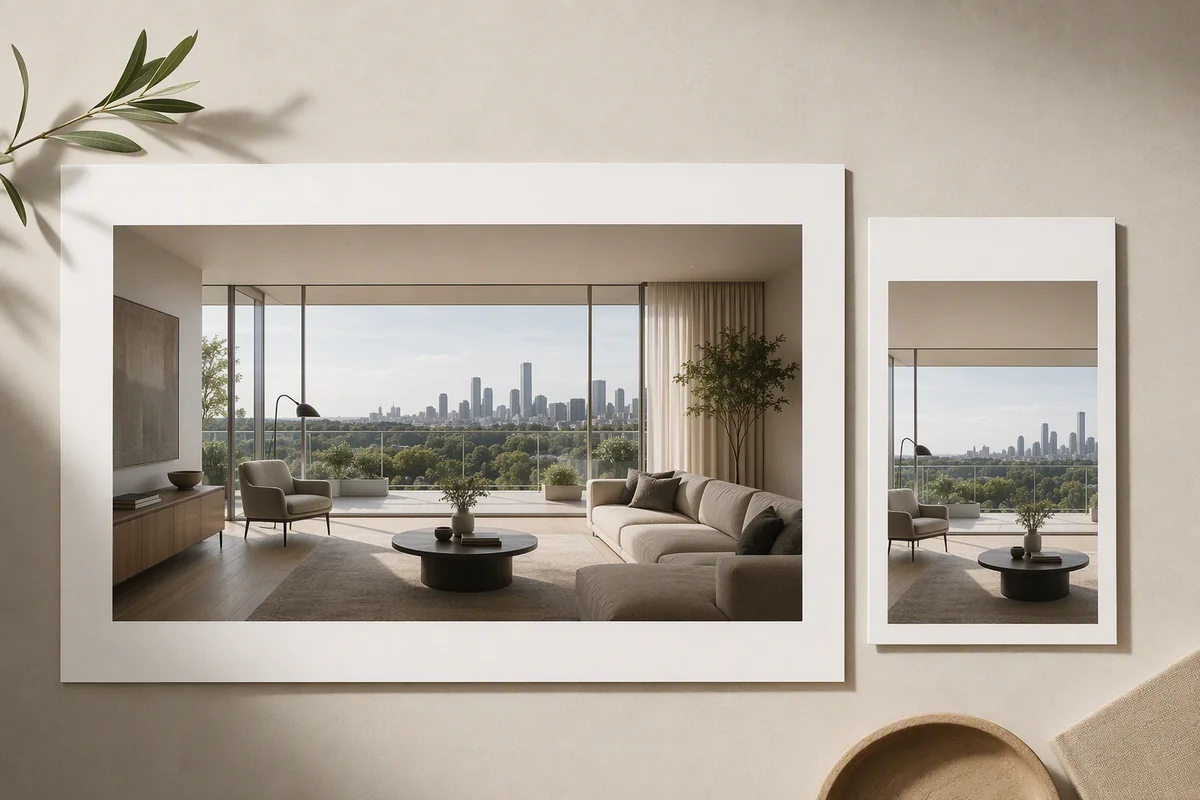
Yes, suitable rendered panoramas can provide the room views. That makes the tour relevant to developers and architectural studios as well as agents presenting completed homes.
The panorama workflow presents the imagery supplied to it. Rendered proposals should be identified as such; a navigable tour does not establish measurement accuracy or turn the images into a surveyed digital twin.
Can a room be reimagined inside the tour?
Splatr includes a related Reimagine AI workflow for panoramic rooms. Authors can create a new visual direction, and a visitor-facing view action is available where enabled. Read how Reimagine AI works in 360° for the distinction between authoring and visitor access.
How do you publish and share the tour?
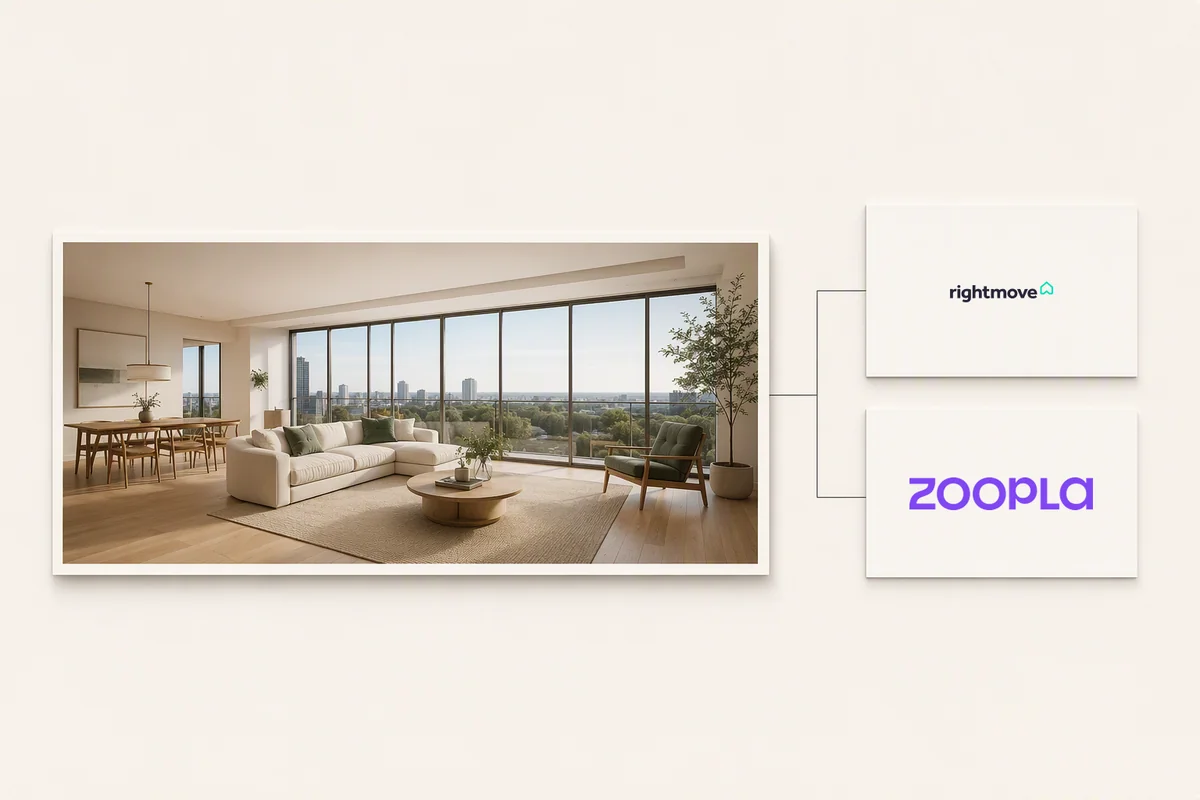
Use the publishing controls to make the intended tour view public and copy its link. Share the destination directly, add it to a compatible agency website, or use a portal’s supported external-tour process.
Rightmove and Zoopla have their own listing workflows. A Showcase page can also present the tour alongside photographs, property details and a film, giving the property both an introduction and an interactive viewing experience.
Put the guide into practice.
Try Virtual Studio with your own property images.
14-day free trial on the Basic plan.