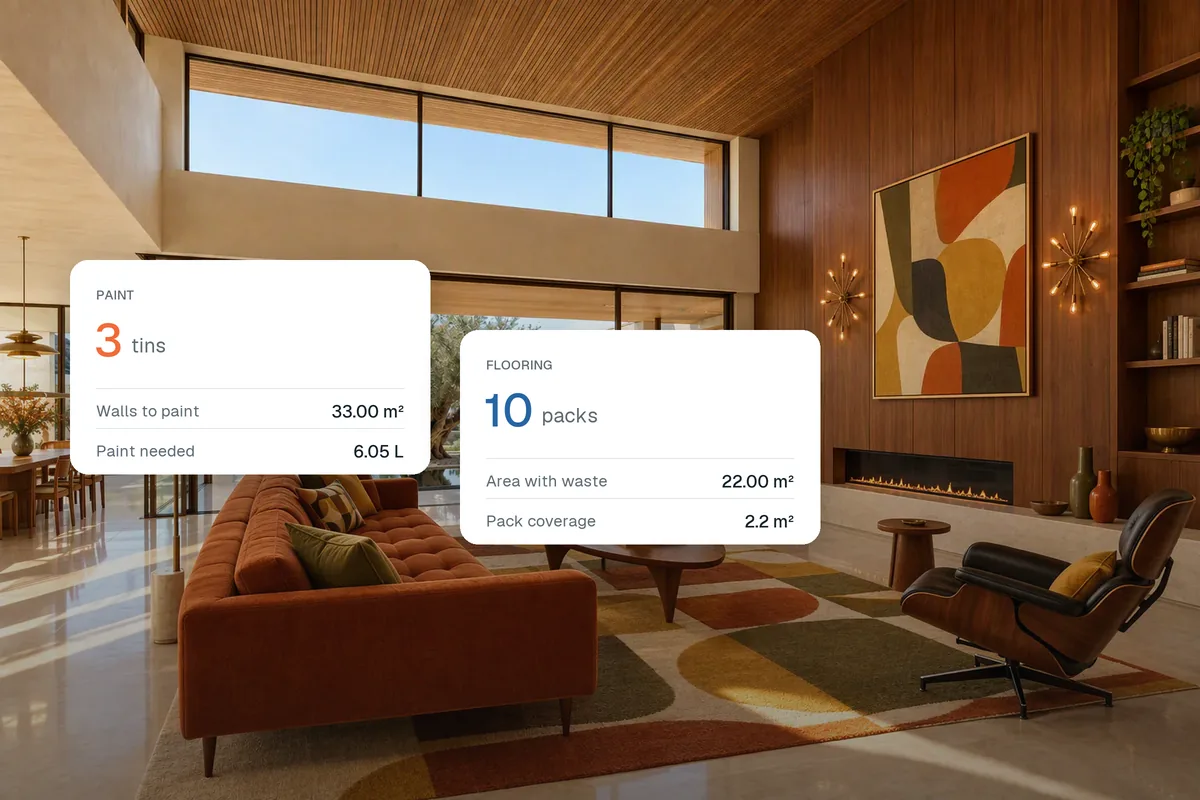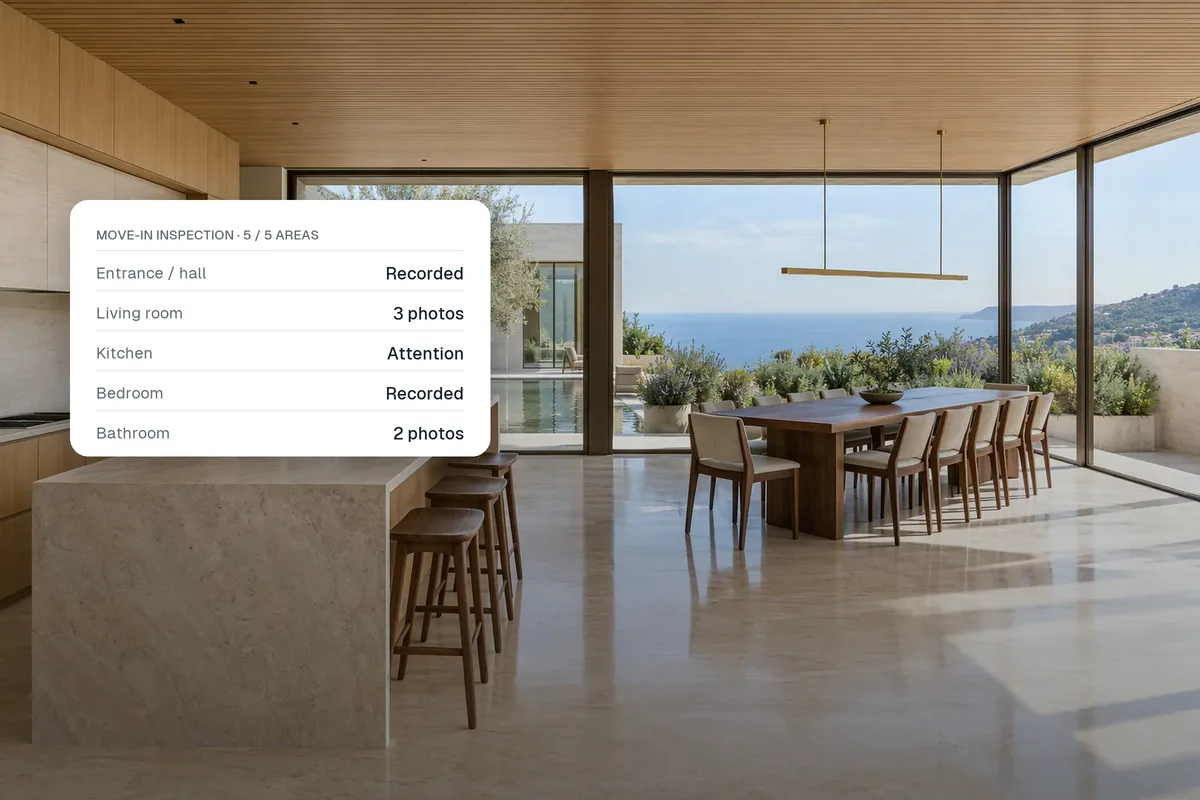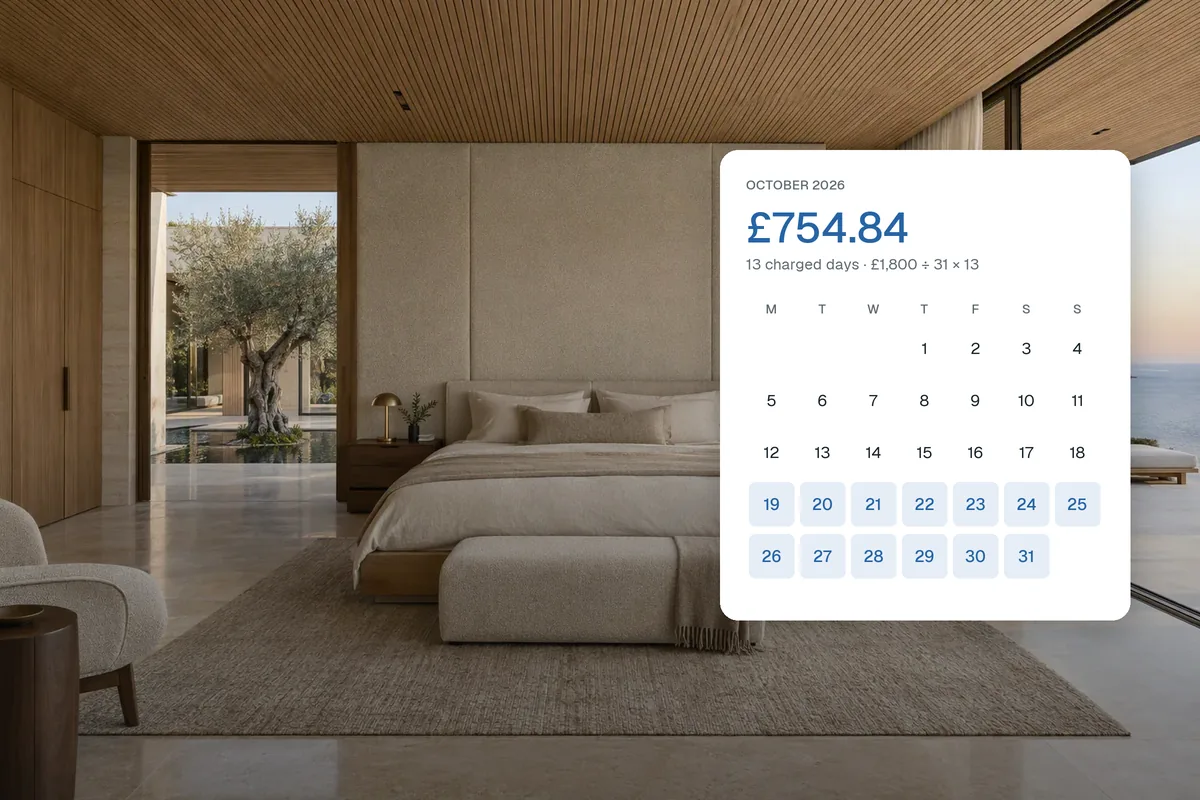
A before-and-after pair is one of the few property images people stop to look at twice. It tells a story in one frame: what the room was, what it became, and what is possible. Estate agents use them for staged listings, developers for refurbishments, landlords for void works and photographers to show their editing.
You can make an interactive slider from any two photos with the free before and after slider, then embed it on a website or download a side-by-side image for social media.
Why do before-and-after photos work so well?
Because comparison is easier than imagination. Asking a buyer to picture an empty room furnished, or a tired kitchen painted, puts the work on them. Showing both versions does it for them. The slider format adds a small interaction, and people who drag the divider spend longer on the image than people who scroll past a single photo.
They also build trust. Showing the original next to the edited version is a clear, honest disclosure for virtual staging, and it proves that a refurbishment really happened.
When should you use them?
- Virtual staging. Empty room on one side, furnished on the other.
- Renovations and refurbishments. The same view before and after the works, for a developer’s portfolio or a resale listing.
- Decluttering and cleanup. Useful when selling a lived-in home or reletting a flat.
- Day to dusk. A daytime exterior beside a twilight version.
- Lettings and void works. Show a landlord what their money bought.
- Photography and editing. Show raw against edited to win instructions.
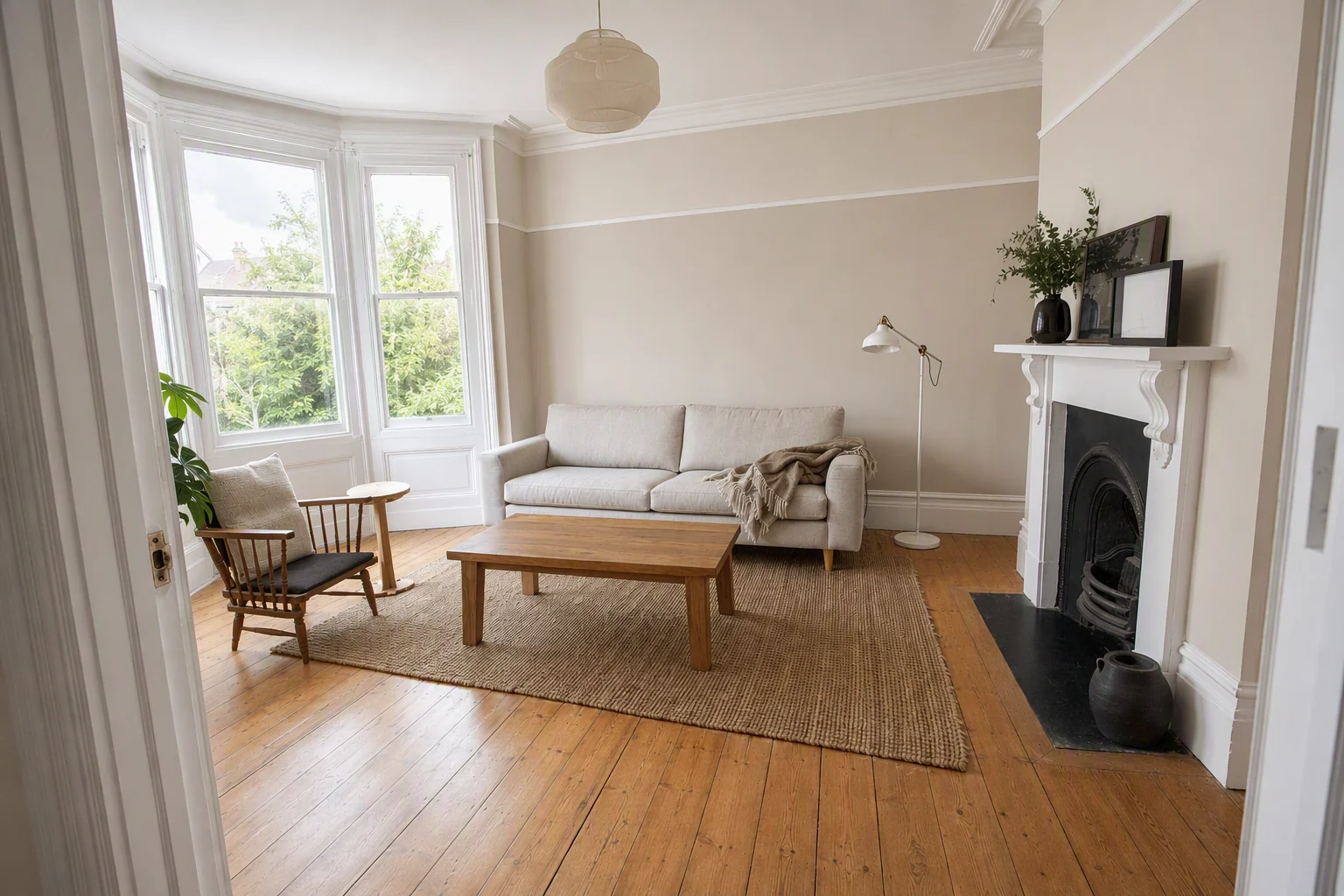
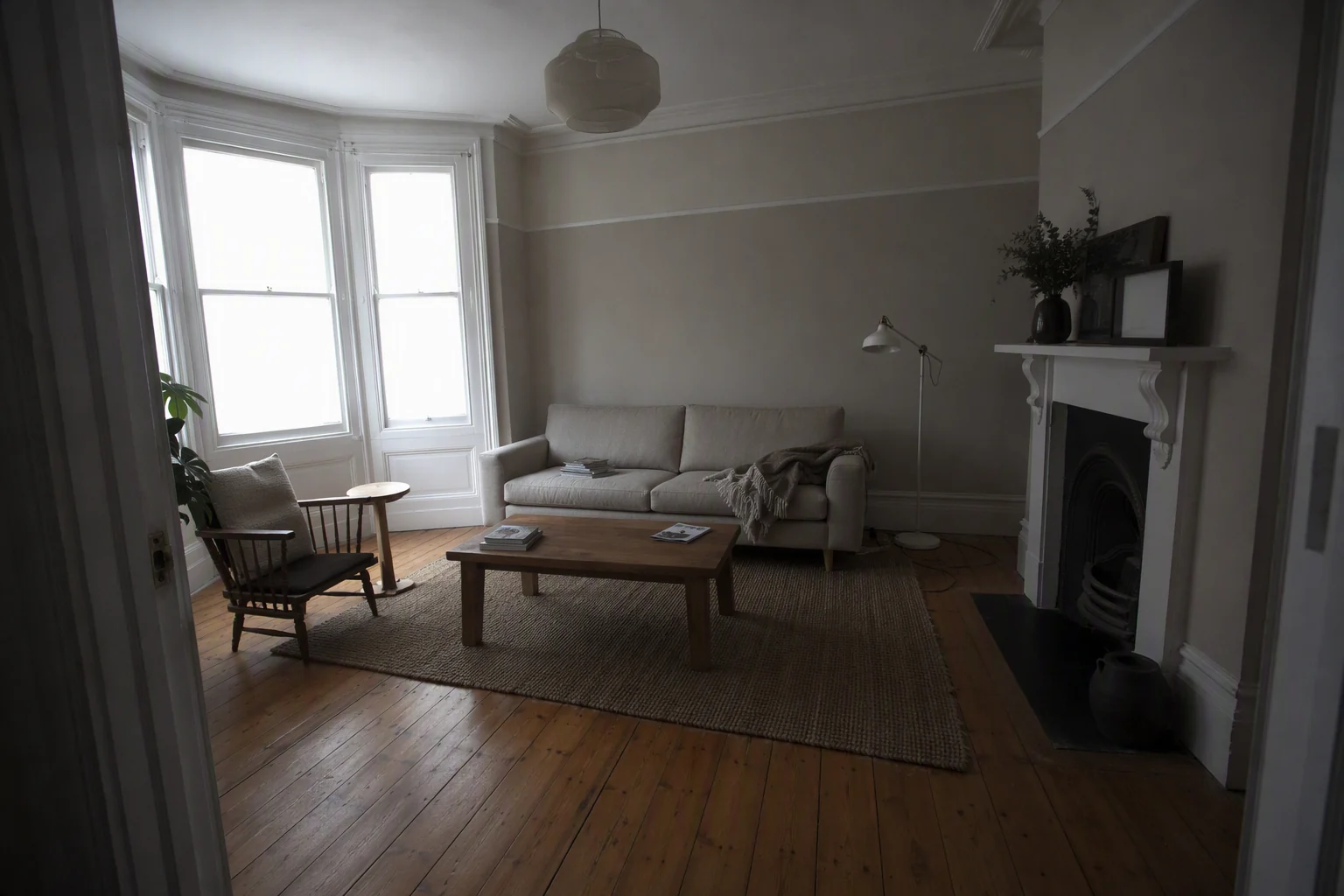
How do you take a matching before-and-after pair?
The comparison only works when the two photos line up. A few habits make that easy:
- Shoot from the same spot. Mark the tripod position with tape, or note the room corner you stood in.
- Keep the same height and lens. Chest height and the same zoom setting.
- Match the light. Same time of day, and the same lights switched on, unless the change of light is the point.
- Keep it level. Straight verticals make both photos look professional and help them align.
- Take a few extras. It is easier to pick a matching pair from five than to reshoot.
If the after photo is created digitally, for example with Splatr’s AI staging, the framing already matches because the result is made from the original.
How do you make a before-and-after slider?
With the before and after slider:
- Add the before photo, then the after photo. The after photo is fitted to the shape of the before photo.
- Choose labels, such as Before and After, Empty and Virtually staged, or Day and Dusk.
- Drag the divider to the starting position you want.
- Download the slider HTML: a single file with both photos inside, no external scripts.
- Or download a side-by-side or stacked JPG for platforms that do not support sliders.
Nothing is uploaded; the photos are processed on your device.
How do you embed a slider on a website?
Upload the HTML file to your website, file host or content management system’s media library, then embed it with an iframe. The tool gives you the snippet; replace the address with wherever you uploaded the file:
<iframe src="https://your-site.com/before-after-slider.html" title="Before and after" style="width:100%;aspect-ratio:1.5;border:0" loading="lazy"></iframe>
On platforms that do not allow iframes, use the JPG version or link to the hosted file.
Where should you post before-and-after photos?
| Channel | Best format | Tip |
|---|---|---|
| Your website or property page | Embedded slider | Put it near the top of the listing |
| Instagram and Facebook | Stacked JPG or a two-image carousel | Put the after photo first in a carousel |
| Side-by-side JPG | Add one line on what changed and why | |
| Portals | The after photo, labelled, with the original in the gallery | Check your portal’s rules on altered images |
| Vendor or landlord reports | Side-by-side JPG | Add the cost or time taken |
| Short-form video | A wipe between the two | Turn photos into motion with a property video |
What makes a before-and-after misleading?
Changing what is being compared. If the after photo is taken with a wider lens, from a different corner, or with the defects edited out, the comparison stops being honest. Keep framing identical, label digital changes clearly and never alter the structure or condition of the property in the after image.
How do you create the after image if the work has not happened yet?
That is what virtual staging and restyling are for. In Splatr Virtual Studio, Splatr can furnish an empty room, clean up clutter or try new finishes on the original photo, so the before and after line up exactly. Bring the result back to the slider to share it.
Put the guide into practice.
Turn your own photos into edited images and videos in minutes.
7-day free trial.