Splatr Video Generator turns property photographs into moving clips and combines them into an exportable film. It is a Virtual Studio plugin with image-to-video generation, camera direction, landscape and portrait formats, and sequence editing. The plugin is currently beta.
How do you create video from a photo?
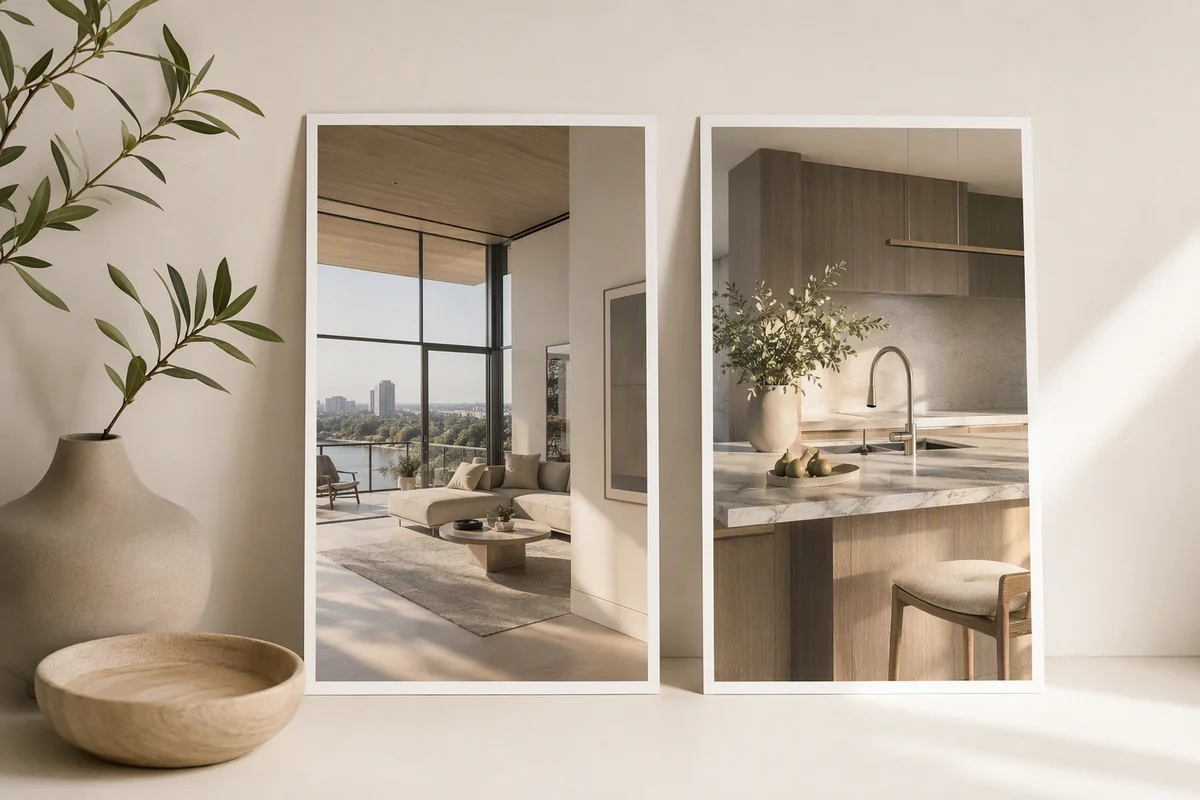
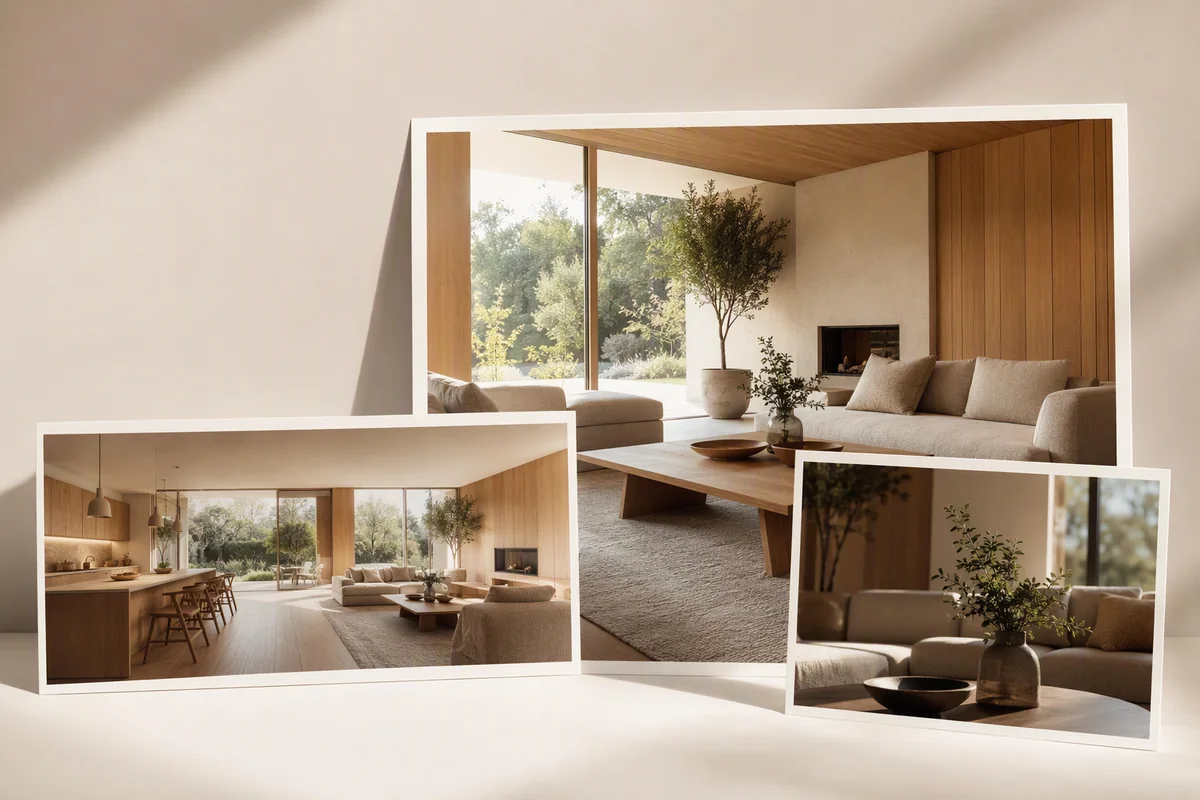
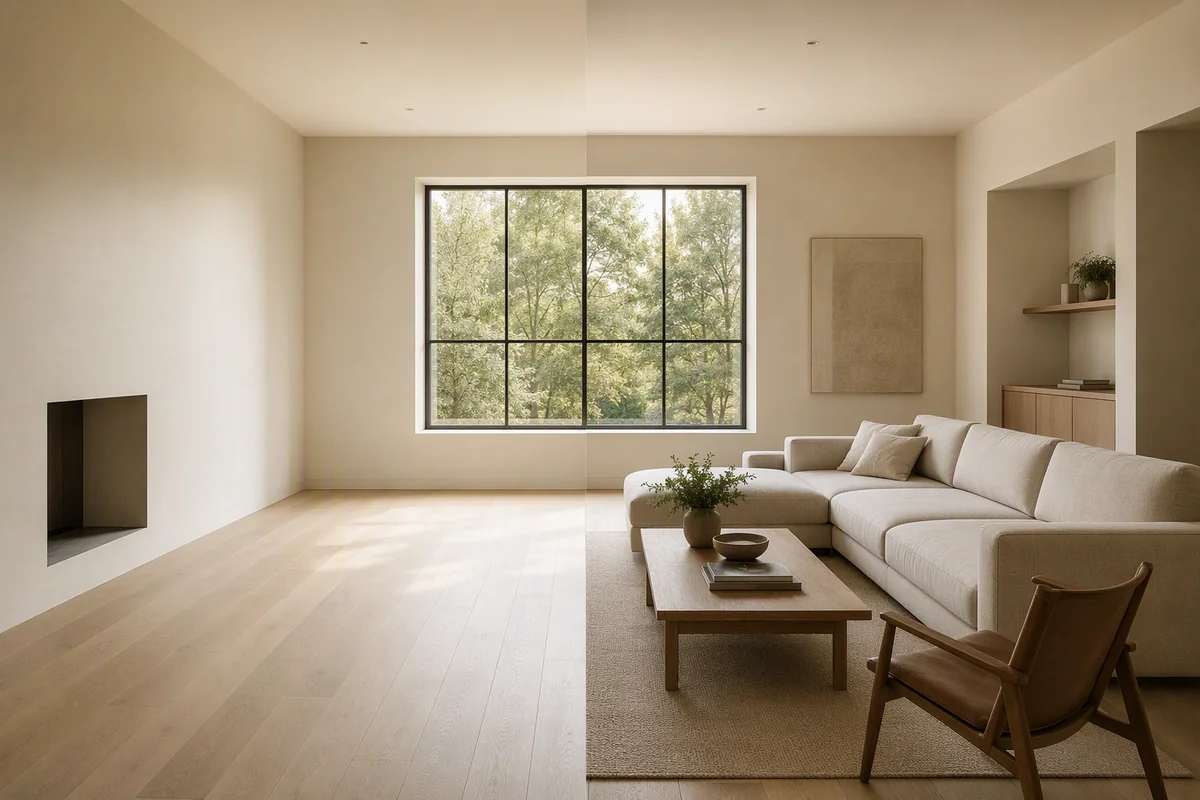
Add a property image as the source and describe the movement you want. A wide living-room photograph can become a gentle forward move; another view can provide a separate clip for the next part of the film.
This creates motion from still imagery. You do not need to film a new walkthrough to produce this kind of property video, although generated movement is different from footage recorded inside the building.
What controls shape the result?
| Control | What it changes |
|---|---|
| Source image | The property view used for generation |
| Camera direction | The intended movement and visual treatment |
| Aspect ratio | Landscape 16:9 or portrait 9:16 framing |
| Sequence editing | The arrangement of clips in the film |
| Titles and music | The presentation around the imagery |
| MP4 export | The finished video file |
The editing workflow uses OpenCut to assemble and refine the sequence. You can work with several selected property images rather than relying on one continuous generated shot.
Can you use virtually staged images?
Yes. A selected Reimagine AI output can become the source for a generated clip. That connects virtual furnishing with video creation: prepare the room image, then use it to develop the moving presentation.
Reimagine AI supplies the image-editing tools, while Video Generator controls the film workflow. Staged or proposed interiors should remain clearly identified when used in the final video.
What creates the cinematic effect?
Camera direction adds motion to the property image, and sequence editing lets you control how the views are presented together. Music and titles can complete the film without requiring them to be part of the source photograph.
Generated motion can change details or invent areas outside the photograph. Review clips for structural and object consistency before selecting them for the export.
Where can the film be used?
Include the film in a Showcase presentation or use the exported MP4 in a destination that accepts the format. Portrait framing suits phone-based viewing; landscape provides a wider property view. Explore vertical property videos for the 9:16 workflow.
For property portals, follow their hosted-video requirements separately. An MP4 export is not automatically a supported portal video link.
Put the guide into practice.
Try Virtual Studio with your own property images.
14-day free trial on the Basic plan.